Export Health Data Safely From Your Phone to Clinician Ready PDFs

Export your health data by using your device’s built-in export tool, either Apple Health’s “Export All Health Data” or Android’s Health Connect scheduled export, both of which package your history into a ZIP file. If you need something readable instead of raw XML, run that ZIP through a converter to get CSV for spreadsheets or PDF for a clinician. Treat every export like a medical record: encrypt it, store it briefly, and delete it once you’ve shared what you need.
TL;DR:
Exported data files can be extremely large, especially for long-term users with multiple synced sources, leading to longer processing times.
Most export tools provide raw data in XML or ZIP formats, which require conversion to CSV, PDF, or JSON for practical use or sharing with clinicians.
Before sharing, it is safest to store exported files in encrypted locations and delete them once no longer needed to protect privacy.
Export failures often result from low device storage, outdated apps, or large date ranges; fixing these is usually quick with simple troubleshooting steps.
Connecting multiple exported sources like blood tests, sleep, and activity in a health overview platform adds real value to raw data, revealing meaningful patterns.
Table of Contents
How Do You Export Apple Health Data?
Apple’s iPhone export is the fastest route to a full backup, and it takes just a few taps to start. Open the Health app, tap your profile icon in the top right, scroll down, and tap Export All Health Data. Confirm the export, and iOS begins compressing your entire history into a file named health-records.zip, which you can then save to Files, AirDrop to a computer, or send through Mail, according to Apple’s own export documentation.
That ZIP file is not a spreadsheet. Inside, you’ll find a single, large export.xml document, plus a folder of any workout route files if you’ve logged GPS activity. The XML holds every data point Health has ever recorded for you, from step counts to blood oxygen readings to menstrual cycle logs, all wrapped in nested tags that were built for machines to parse, not humans to skim. Opening it in a plain text editor or browser usually works, but scrolling through tens of thousands of entries looking for one blood pressure reading from March is not a good use of anyone’s afternoon.
What the export actually contains:
-
One export.xml file with timestamped entries for every health category you track
-
A route folder with GPX files if you’ve recorded outdoor workouts
-
No native summary, chart, or filtering. It’s raw data, not a report
File size scales with how long you’ve used Health and how many data sources feed into it. Longer usage and more synced devices produce larger exports, sometimes reaching very large sizes that take longer to compress and transfer. Larger exports simply take longer to compress and transfer, so don’t be surprised if the process runs a few minutes on an older device.
Apple’s built-in export is the right call when you’re doing a one-time backup before switching phones, or when a specialist asks for your complete health history and you’d rather hand over everything than sort through categories. It’s the wrong tool when you actually want to read the data yourself, chart a trend, or hand a doctor something they can glance at in a five-minute appointment. For that, you’ll want a converter, which the next few sections cover in detail.
How Do You Export Health Connect Data on Android?
Android’s Health Connect, Google’s cross-app health data hub, handles exports differently than Apple. Instead of a single manual button, it’s built around scheduled export, an automated backup that runs on a timer you set once.
Here’s how to set it up:
-
Open Settings on your Android device and search for “Health Connect,” or find it directly if it’s pinned in your apps list.
-
Tap Manage data, then select Backup and restore.
-
Choose Scheduled export and pick a cloud storage destination, Google Drive is the most common option.
-
Set your export frequency: daily, weekly, or monthly, depending on how often your data changes and how much you care about losing recent entries if something goes wrong.
-
Confirm the setup. Health Connect will now generate a file automatically, named Health Connect.zip, and drop it into your chosen storage location on schedule.
That file bundles your synced data, activity, sleep, heart rate, and any metrics your connected apps write into Health Connect, into a structured archive similar in spirit to Apple’s export. One catch worth knowing before you rely on it: Google notes that health records support in this backup process may be limited, so if you’re tracking lab results or medication logs through a connected app, don’t assume the scheduled export captures all of it, per Google’s Health Connect backup documentation.
Moving to a new Android phone? Open Health Connect on the new device, go to the same Backup and restore menu, and choose the import or restore option, pointing it at the ZIP file in your cloud storage. The transfer isn’t always instant, and Google’s own guidance suggests testing the import before wiping data off your old device, since scheduled exports weren’t originally designed as a full migration tool.
Which Tools Turn Raw Exports Into Usable Files?
Once you’ve got a ZIP full of XML or Health Connect data, the real work starts: turning it into something you can actually use. That means picking the right output format for the job.
-
CSV is best for spreadsheets, personal tracking, or feeding data into analysis tools like Excel or Google Sheets.
-
JSON suits anyone comfortable with light scripting or building a custom dashboard.
-
PDF is the format clinicians and specialists actually want, since it renders as charts and tables instead of code.
Three broad categories of tools handle this conversion. On-device export apps live right on your phone, pull directly from Apple Health or Health Connect, and let you choose a date range and output format without ever sending your data to a server. Desktop converters take the ZIP you already exported and process it locally on your computer, which suits people who want more control over file handling. A smaller group of technically inclined users skip apps entirely and write their own scripts to parse export.xml directly, filtering for specific record types like heart rate or glucose.
Before you install anything, run through a short checklist: does the app process data on-device or upload it somewhere first? What does its privacy policy actually say about retention? Can you limit the export to a specific date range instead of dumping years of history? And does it support the specific metrics you care about, some converters handle steps and heart rate well, but skip mental health or reproductive health categories entirely. Apps like the one listed under Health Data Export on Google Play illustrate the pattern: CSV and spreadsheet-style exports, with permissions and processing methods that vary by developer, so check reviews and permissions before trusting one with years of personal history.
Pro Tip: Run a test export with a narrow date range, like the last seven days, before you commit to converting your entire history. It takes two minutes and saves you from discovering a formatting problem after you’ve already generated a 400-page PDF.
A typical workflow looks like this: export from Apple Health, run the ZIP through an on-device converter, and land on a clean CSV you can drop into a spreadsheet to chart your resting heart rate over six months. Or, if you’re prepping for an appointment: export from Apple Health, run it through a PDF generator built for appointment-ready formatting, and hand your doctor a document instead of a phone screen.
What Should You Include in a Clinician-Ready Export?
Doctors don’t need your entire health history. They need the specific window that answers their specific question, so trim your export before you share it.
Commonly requested metrics include heart rate history, blood pressure readings, blood glucose, weight trends, and sleep duration or quality. The right date range depends on what’s being evaluated: a heart specialist checking on a new heart-rhythm concern might want 30 days of heart rate data, while a primary care visit reviewing general health might benefit from three months to a year of trends.
A few formatting rules matter more than people expect:
-
Confirm units before exporting. Blood glucose in mg/dL versus mmol/L, or weight in pounds versus kilograms, can confuse a chart if your device switched units at some point.
-
Double-check timestamps, especially if you’ve traveled across time zones during the tracking period.
-
Favor PDFs with visible charts over raw CSV for anything going to a doctor. A formatted PDF with standardized units reads faster in a short appointment than a spreadsheet a clinician has to scroll through.
To build one, export your raw data first, then run it through a PDF-generating converter and select only the metrics and date range relevant to your visit. If you’d rather understand what a given reading means before you walk into the appointment, a plain-language reference like Panorahealth’s health insights library can help you make sense of your own numbers first. And whichever tool you choose, favor one that processes your data locally rather than uploading a full medical history to a third-party server just to generate a report.
How Do You Keep Exported Health Data Private?
An export file is a medical record the moment it leaves your device, and it deserves the same caution you’d give a folder of paper charts. Loose files sitting in a cloud drive or an email inbox are an easy target if that account is ever compromised.
A few habits go a long way:
-
Store exports in encrypted storage, not a general-purpose folder synced across every device you own.
-
Favor apps and converters that process data locally instead of uploading your full history to a server you don’t control.
-
Read the privacy policy of any third-party tool before granting it access, especially platform-level policies that govern what happens to data once it leaves your device.
-
Share files through a secure patient portal, encrypted email, or a printed copy handed over in person, rather than a plain text message or unprotected link.
-
Delete exported files from cloud storage once you’ve shared what you needed. There’s no reason a six-month-old export should still be sitting in a shared drive.
Pro Tip: If you only need to share one data type, like sleep, export that category alone instead of your full history. Smaller files are faster to check for errors and expose less if something goes wrong.
Apple has prioritized this for specific features, too. Some mental health assessments in the Health app process entirely on-device and offer their own export button, so sensitive categories don’t have to pass through a general-purpose converter at all, per Apple’s privacy documentation.

Why Do Exports Fail or Stall?
Most export problems trace back to a handful of predictable causes, and they’re usually fixable in under five minutes.
-
Check available storage first. A phone or cloud account running low on space is the single most common reason an export stalls halfway through.
-
Update the app and OS. Export features get bug fixes regularly, and an outdated Health app or Health Connect version is a frequent culprit.
-
Narrow the date range. If you’re exporting years of dense data, try a smaller window to see if the process completes.
-
Restart the device. It sounds basic, but a stuck background process often clears with a simple restart.
-
Verify permissions. Health Connect and Health app exports both require storage and file access permissions that can get silently revoked during updates.
If export.xml opens but Excel chokes on the file size, don’t force it. Filter the file by metric using a converter, or open it in a text-aware tool built to handle large XML documents. And if you’re requesting a full account archive from a service like Google or Fitbit rather than a device-level export, budget for it to take hours or even a few days depending on how much data has accumulated. When none of this resolves the issue, Apple’s and Google’s own support pages are more reliable than forum threads for catching known bugs.
Why Owning Your Exported Data Actually Matters
Exporting your health data isn’t a chore you do once and forget. It’s the difference between your health history living wherever an app’s server happens to sit, and it living somewhere you control, ready to hand to a new doctor or a specialist without waiting on a records request.
The bigger opportunity most people miss is connection, not collection. A heart rate spike means something different next to a bad night of sleep and a skipped meal than it does in isolation. Bringing lab work, sleep, training, and nutrition into one view is where patterns actually surface, not in any single export sitting alone in a folder. A privacy-forward tool that can synthesize those exports without demanding you hand over everything to a distant server is the piece most export guides skip entirely.
— Jackson
Where Panorahealth Fits Once You’ve Exported Your Data
A finished export is just a file until someone connects the dots inside it, and that’s the gap most export tutorials leave open. Panorahealth ingests exported sources like blood work, sleep, training, and nutrition and shows you how they move together over time, instead of leaving you to eyeball five separate spreadsheets.
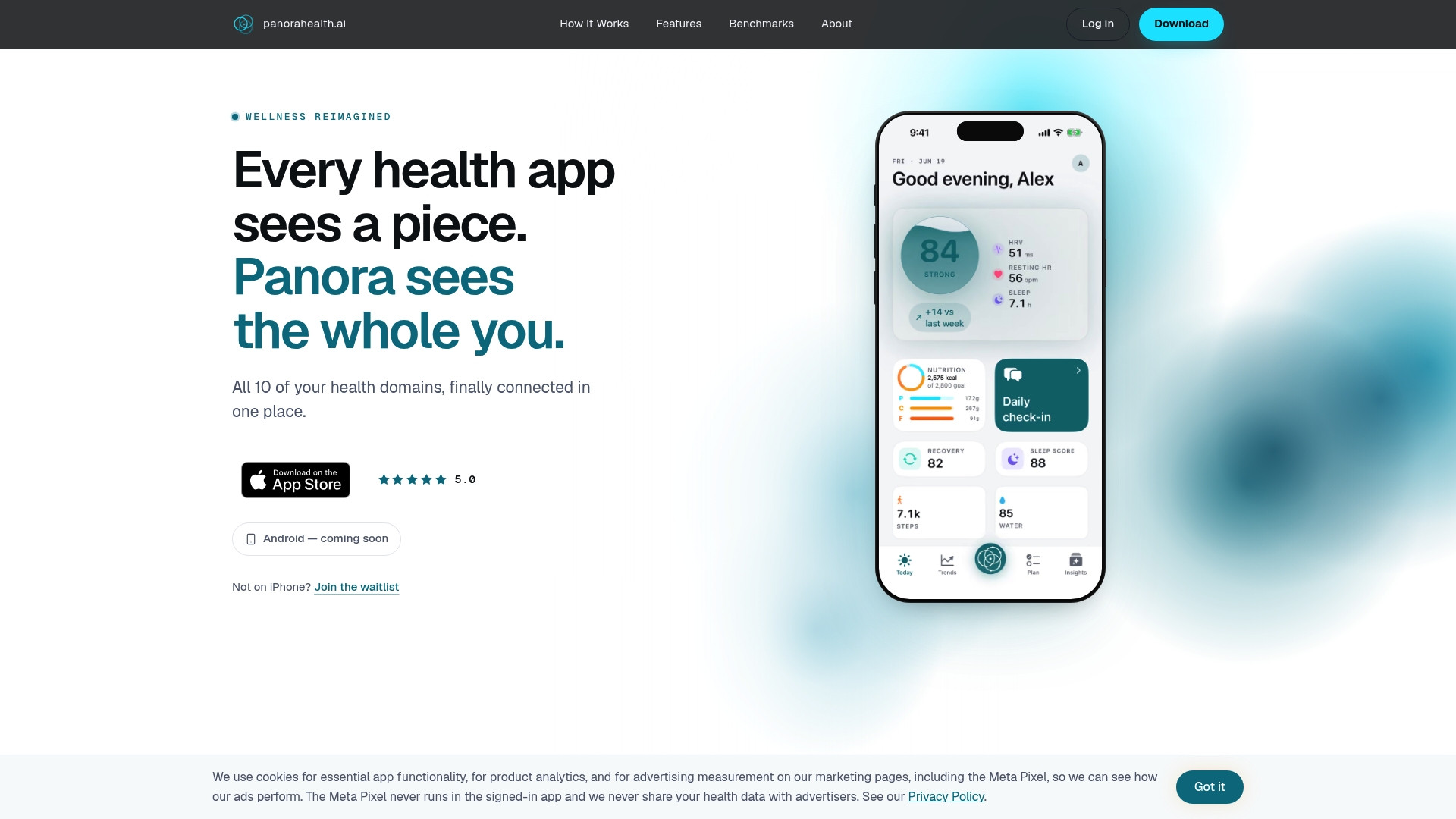
If you’ve just pulled your Apple Health export or a Health Connect ZIP and you’re staring at a wall of numbers wondering what any of it means together, that’s exactly the moment Panorahealth is built for. Rather than reading a heart rate trend in isolation, you see it next to your sleep quality and recent lab markers, translated into plain language instead of medical shorthand. The app keeps your data under your control, with privacy settings you manage directly, detailed on the Panorahealth privacy page. If you want a single place where your exported history actually turns into insight, start by exploring Panorahealth’s platform and see how your own data looks once it’s finally in one view.
This article is general information, not a substitute for advice from a qualified doctor. Consult a qualified healthcare professional about your own circumstances before acting on anything here.
Sources
FAQ
How do I export all health data from my iPhone?
Open the Health app, tap your profile icon, scroll down, and tap Export All Health Data, then confirm to generate a health-records.zip file containing your full history.
Can I export all my Apple Health data at once?
Yes. Apple’s built-in export function pulls every category you’ve ever tracked, from steps to lab results synced through connected apps, into one XML file inside a single ZIP.
How long does it take to export health data from an iPhone?
It depends on how much history you have. A light user with a year or two of data might see the export finish in under a minute, while someone with years of continuous wearable data can wait several minutes for the file to compress.
How do I export my Google Health data?
For Health Connect on Android, set up scheduled export through Settings, which backs up your data to cloud storage on a timer you choose. For a full account archive request, Google’s health data help center outlines a separate request process that can take hours to a few days to prepare.
What’s the best format for sharing health data with a doctor?
A formatted PDF with charts and clearly labeled units is generally easier for a clinician to review quickly than a raw CSV or XML file, which are better suited to personal analysis and archiving.
Recommended
Panora Health AI provides wellness information, not medical advice. This is not a substitute for professional medical diagnosis or treatment. Always consult a qualified healthcare provider before making health decisions.